Simulation
About everything related to our used simulation(s) (not only the KITcar simulation!), world models, car models, simulation plugins (e.g. sensors), etc.
KITcar Simulation
Gitlab branch: kitcar-simulation-scenario
- Note: This branch includes some modifications to the original github repository of Team KITcar!
Launching the Simulation
export KITCAR_REPO_PATH=path/to/kitcar-repo/root   # where kitcar-gazebo-simulation/ is stored
cd kitcar-gazebo-simulation/
source init/bashrc   # includes e.g. source simulation/devel/setup.bash
roslaunch simulation_groundtruth groundtruth_node.launch road:=default_road   # for groundtruth rviz markers
roslaunch gazebo_simulation master.launch rviz:=true
To list all available master launch file options:
$ roslaunch gazebo_simulation master.launch <tab> <tab>
align_with_middle_line       include_car
apply_gan                    include_groundtruth
automatic_drive_loop         include_jetson
car_name                     include_mission_mode_plugin
car_state                    include_object_controller
control_sim_rate             include_renderer
evaluate                     include_vehicle_simulation
evaluate_sign_detection      jetson_debug
factor_keep_colored_pixels   jetson_debug_max_rate
factor_keep_pixels           label_camera
force_reload_road            link_pose
gui                          link_twist
gz_debug                     randomize_path
gz_extra_args                road
gz_paused                    rviz
gz_physics                   seed
gz_pub_clock_frequency       sign_evaluation_plots_path
gz_recording                 sim_rate_max
gz_respawn                   sim_rate_min
gz_use_clock_frequency       use_sim_time
gz_verbose                   use_wasserstein_gan
Groundtruth
Bounding Boxes
Publishing groundtruth bounding boxes on a rostopic: see LabelCameraNode doc
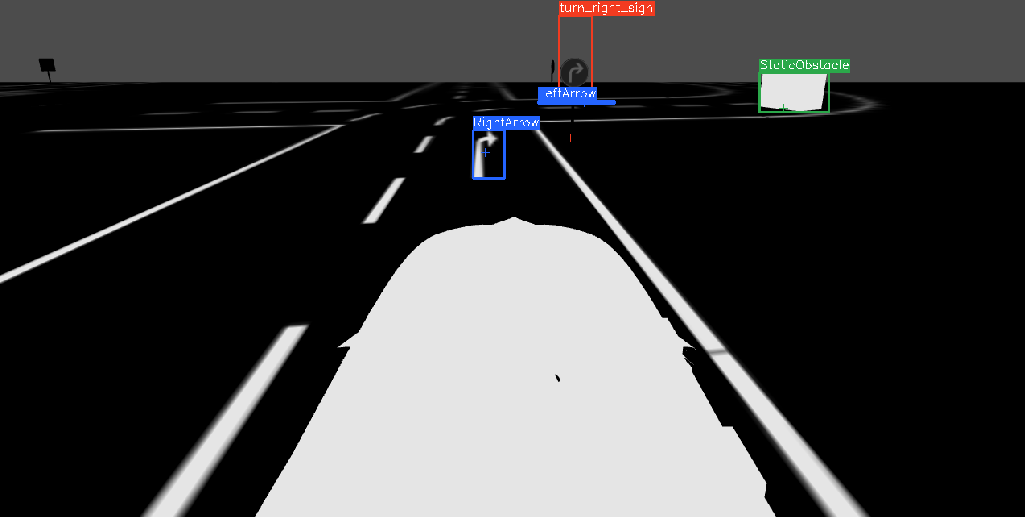
Run roslaunch gazebo_simulation master.launch rviz:=true label_camera:=true and start rqt.
- The bounding boxes will be visible on topic
/simulation/label_camera/image(see Figure 1). - The labels will be published on topic
/simulation/label_camera/image_labels.
Figure 1: Simulation groundtruth bounding boxes on /simulation/label_camera/image (visualized with rqt image view).
Roads
WARNING: The SimulationLineDetection in the galaxis_simulation_adapter_pkg will not work properly with roads that are not closed loops. Use the galaxis/simulation/laneimage topic to see what the car actually sees.
Roads are python scripts that are stored in simulation/models/env_db/. Have a look at one of the scripts. They are pretty readable.
To list some example roads that are included in the KITcar repository run
ls simulation/models/env_db/
ls simulation/models/env_db/ci_roads/
Launch command:
roslaunch gazebo_simulation master.launch rviz:=true label_camera:=true road:=default_freeride_road
Warning, do not forget the "s" in ci_roads/:
roslaunch gazebo_simulation master.launch rviz:=true label_camera:=true road:=ci_roads/some_road_in_ci_roads_folder
The roads that are included in the KITcar repository have some quick modification options. For instance, by default the road ci_roads/double_intersection.py contains two intersections with "give-way" lines (i.e. dashed lines). If you want to quickly get an intersection with stoplines instead of "give-way" lines, you can set the environment variable
export FIRST_RULE="stop"
and then run
roslaunch gazebo_simulation master.launch road:=ci_roads/double_intersection
The road ci_roads/double_intersection.py will have a stopline intersection now.
Similarly, if you want a road that continues left after a left turn at the intersection you can set
export FIRST_TURN=left
Please, look at the ci_roads/double_intersection.py script to see other modification options. These "quick modification options" are loaded via a os.environ.get(value, default_value) call there.
RVIZ
Groundtruth visualization
You can visualize the simulation groundtruth like this:
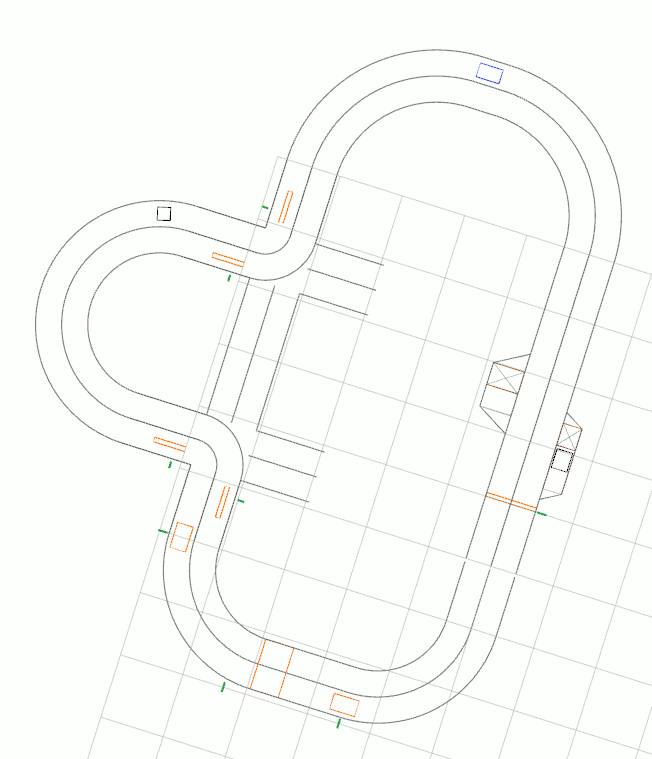
To do this, first, in simulation/src/simulation_brain_link/launch/vehicle_link.launch remove the line
  <!-- RVIZ -->
  <include if="$(arg rviz)" file="$(find visualization)/launch/visualization.launch" />
Then, run
roslaunch gazebo_simulation master.launch include_groundtruth:=true road:=default_road rviz:=true
If you do not remove the line mentioned above, the car_frame and the other groundtruth markers will not be visible in rviz and roslaunch gazebo_simulation master.launch include_groundtruth:=true rviz:=true will not start and will report an error:
Resource not found: visualization
ROS path [0]=/opt/ros/melodic/share/ros
ROS path [1]=/home/galaxis-simulation/workspace/kitcar-gazebo-simulation/simulation/src
ROS path [2]=/opt/ros/melodic/share
The traceback for the exception was written to the log file
This is because the visualization node launched by simulation/src/simulation_brain_link/launch/vehicle_link.launch does not exist. The visualization node publishes the missing *_array markers in rviz on the topics
/simulation/visualization/groundtruth/*_array
List of all visualization related topics:
$ rostopic list | grep visualization
/simulation/car_state/visualization/frame
/simulation/car_state/visualization/frame_array
/simulation/car_state/visualization/view_cone
/simulation/visualization/groundtruth/intersection
/simulation/visualization/groundtruth/intersection_array
/simulation/visualization/groundtruth/left_line
/simulation/visualization/groundtruth/left_line_array
/simulation/visualization/groundtruth/middle_line
/simulation/visualization/groundtruth/middle_line_array
/simulation/visualization/groundtruth/obstacle
/simulation/visualization/groundtruth/obstacle_array
/simulation/visualization/groundtruth/parking_line
/simulation/visualization/groundtruth/parking_line_array
/simulation/visualization/groundtruth/parking_spot
/simulation/visualization/groundtruth/parking_spot_array
/simulation/visualization/groundtruth/right_line
/simulation/visualization/groundtruth/right_line_array
/simulation/visualization/groundtruth/surface_marking
/simulation/visualization/groundtruth/surface_marking_array
/simulation/visualization/groundtruth/traffic_sign
/simulation/visualization/groundtruth/traffic_sign_array
/visualization/road_element_visualization/obstacle
/visualization/road_element_visualization/obstacle_array
/visualization/visualization/full_corridor_marker
/visualization/visualization/full_corridor_marker_array
Basic Structure of the Simulation
Understanding the LabelCameraNode
Base ROS node (doc), all other nodes inherit from this class:
./simulation/utils/ros_base/node_base.py
Speaker class, Base class for all other speakers.:
simulation/src/simulation_evaluation/src/speaker/speakers/speaker.py
LabelSpeaker(Speaker), A Speaker that allows to retrieve visible groundtruth objects and their position.:
./simulation/src/simulation_groundtruth/src/label_camera/label_speaker.py
LabelCameraNode(NodeBase) (doc), combines the car’s position with the road’s groundtruth to generate labels in the form of bounding boxes for the camera's images. (imports: LabelSpeaker):
./simulation/src/simulation_groundtruth/src/label_camera/node.py
- Pauses Gazebo Physics while calculating the bounding boxes!
- see
self.pause_physics_proxy()andself.unpause_physics_proxy()in./simulation/src/simulation_groundtruth/src/label_camera/node.py
- see
- TODO: Maybe skip some camera topic frames and calculate bounding boxes for every other frame or every third frame ...
- Otherwise testing scenario planning algorithms will be difficult in the simulation.
camera image transformation
./simulation/src/simulation_groundtruth/launch/camera_image_transformation.launch
- topics:
/camera/image_raw_mouse_left/simulation/rqt_on_mouse_click/world
Docker Image
You can build a kitcar-gazebo-simulation docker image via docker compose build some_service. All build instructions are included in a docker-compose.yaml. See README.rst in kitcar-gazebo-simulation/docker/ (github). However, you have to modify the docker-compose.yaml a little bit to get this to work.
Instead, you can also use the included Dockerfiles in that folder and run docker build.
Troubleshooting
Problem 1:
- If
pipcannot installpygit2, check iflibgit2is installed- you have to build
libgit2from source! see- Dockerfile in our Gitlab repo
- build from source
- stackoverflow: installation instructions in Dockerfile
- Then install
pip install pygit2.
- you have to build
Problem 2:
- make sure Python package
Shapely==1.7.1is installed. Newer versions may not work, as we have seen.
Problem 3:
ERROR: Cannot uninstall 'PyYAML'. It is a distutils installed project and thus we cannot accurately determine which files belong to it which would lead to only a partial uninstall.
- problem:
PyYAMLhas been already installed viaapt install. Seedpkg -l | grep python3-yamlordpkg -l | grep python-yaml. You must install either withpipor withapt, but not both! - fix: remove
PyYAMLfromkitcar-gazebo-simulation/init/requirements.txt
Problem 4:
[gazebo-12] process has died [pid 123, exit code 139, cmd /opt/ros/noetic/lib/gazebo_ros/gzserver -e ode env_db/base_world/model.sdf __name:=gazebo __log:=/root/.ros/log/1489ad54-7da8-11ed-908c-0242ac110002/gazebo-12.log].
or
[gazebo_gui-13] process has died [pid 127, exit code 134, cmd /opt/ros/noetic/lib/gazebo_ros/gzclient __name:=gazebo_gui __log:=/root/.ros/log/1489ad54-7da8-11ed-908c-0242ac110002/gazebo_gui-13.log].
or
libGL error: MESA-LOADER: failed to retrieve device information
issue: if you are in a docker container, this error occurs probably because your GPU is not accessible from the docker container.
fix:
- for Intel GPU:
docker run --privileged(see Running-GPU-under-docker) - for Nvidia GPU:
docker run --gpu all - for older Nvidia GPUs:
docker run --privileged
Problem 5:
Failed to contact master at [localhost:11311]. Retrying...
Prerequisites: first, if you are working in ROS1, make sure roscore is running properly
issue: if you are in a docker container, this error is probably due to the fact that you did not connect your container to the right network
fix: add the --network=host flag to the docker run command, i.e.
docker run --rm -it --network=host <other_options> image:tag
If it still does not work, check the ROS_MASTER_URI variable in each shell in which your nodes will run, and set it correctly, e.g. export ROS_MASTER_URI=http://192.168.65.3:11311.
Hints:
- don't forget to source
- compile.sh --messages --simulation
- change settings in onstartup_global.json file from false to true
Problem 6:
Exception sending a message
solution: answers.gazebosim.org
- run
export IGN_IP=127.0.0.1in the simulation docker
Ignition Gazebo Fortress
Idea: Use the Ignition segmentation camera (see segmentation camera) to test the Galaxis segmentation approach.
Note: Ignition Gazebo Fortress has been renamed! It is called "Gazebo Sim" now. See Migration Guide.
Topics
Note: Since Gazebo "Garden" (released after "Fortress") the ign command has been replaced by gz. See Migration Guide.
topic list: ign topic -l | grep "^/camera"
topic echo: ign topic -e -t /camera
ROS Bridge
- see ros_gz
Roslaunch
Plugins
Note: Ignition Fortress plugins are different than Classic Gazebo plugins! See "Migration from Gazebo Classic: Plugins"
SDF Files
.sdf model file location: e.g. /usr/share/ignition/ignition-gazebo6/worlds/shapes.sdf
Note: Ignition Fortress .sdf files are different than Classic Gazebo .sdf files! See "Migration from Gazebo classic: SDF"